Getting Started
This section will cover the following items:
- Starting
syntoniq-kbd - Selecting the first layout
- Playing some notes with Csound
- Playing some notes with MIDI
- Using the reset feature
All the material in this section is demonstrated in the video linked below.
Starting the Keyboard
Start the keyboard by running
# for Launchpad
syntoniq-kbd run --port=MK3
# for HexBoard
syntoniq-kbd run --port=RP2040
The default options for Csound will work in many cases, but you may need to add additional flags. If you are a Csound user and you have to pass additional flags to the csound command-line tool to get sound, you can use the --csound-arg, which is repeatable, to pass those options to the Csound backend of the keyboard. For example, on Windows, there are multiple dac outputs. You can run csound -odac99 something.csd to force it to give you a list so you can find out which one you should use. Then you might run something like syntoniq-kbd run --port=Hex --csound-arg=-odac1 to send output to a specific port. Check the Csound website for additional documentation on platform-specific startup options.
To use MIDI output instead of Csound, pass the --midi flag to syntoniq-kbd, but note that additional setup is required as briefly discussed in the previous section. You can see an example in the video. The manual doesn't discuss using the Syntoniq keyboard very much because, other than disabling the hardware device in your MIDI software, it's no different from using any other MIDI keyboard.
A major feature of the Syntoniq keyboard is the ability to define your own layouts and scales. This is covered later in the manual. For now, the above command runs the keyboard with the built-in default layout. You can inspect the default configuration using syntoniq-kbd default-config.
To exit from the keyboard program, just hit CTRL-c on the computer keyboard.
If all goes well, you should see something resembling the Syntoniq logo drawn with the keyboard's LEDs. The images below illustrate.
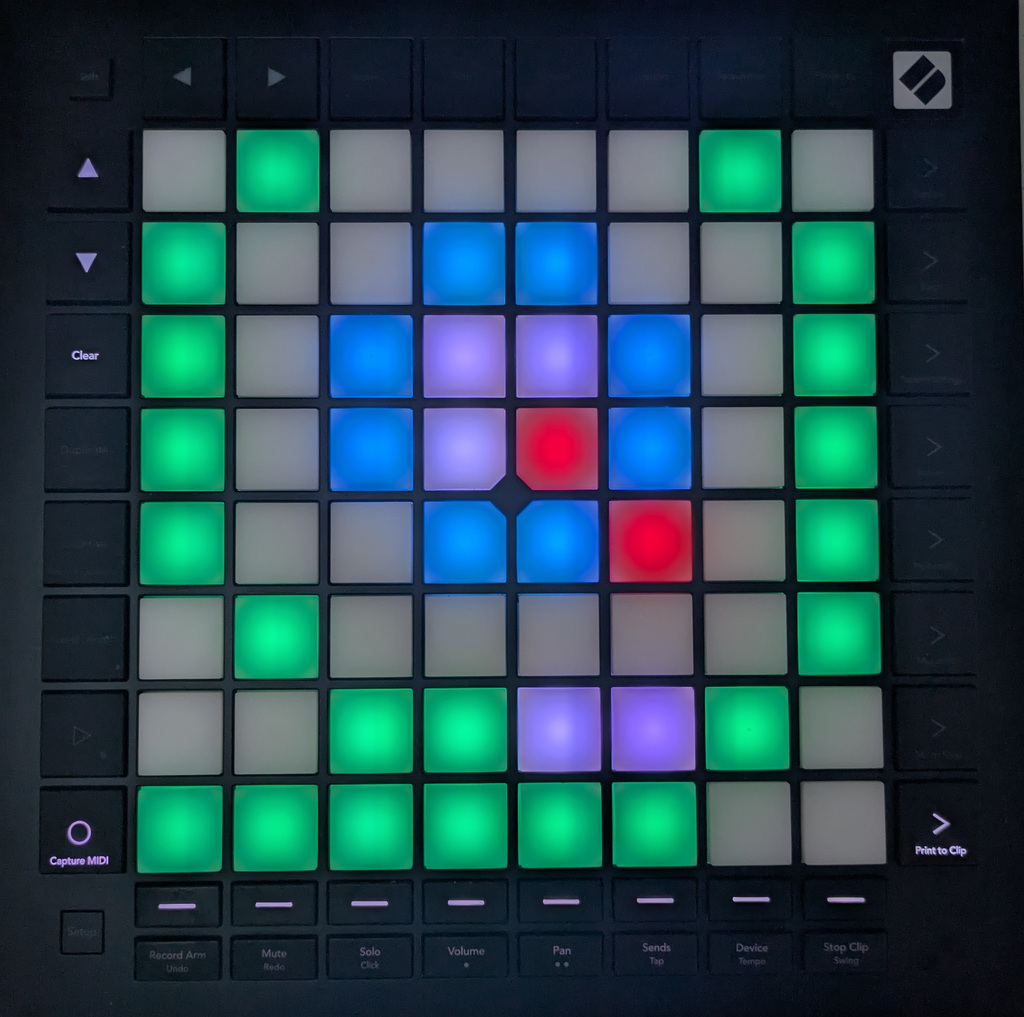
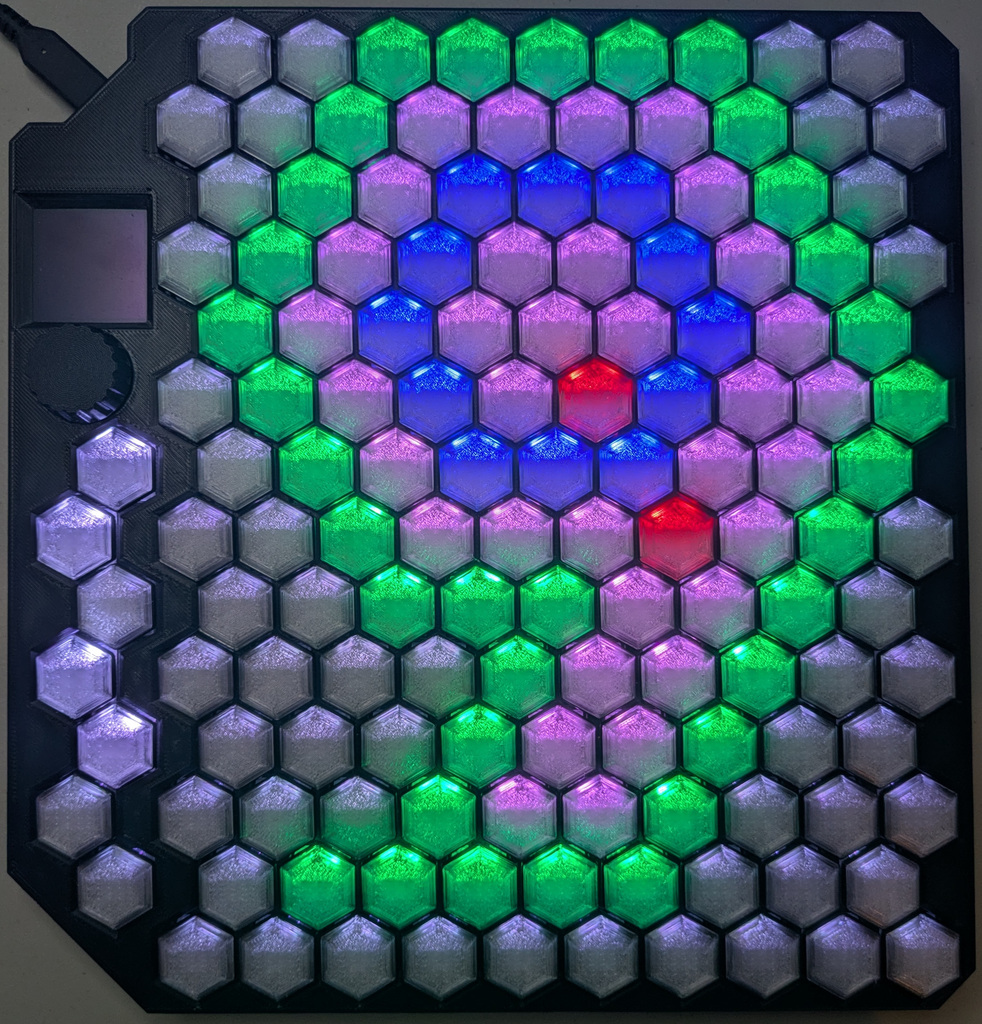
At this point, the Syntoniq keyboard read-only web UI is running. Using your browser, connect to http://localhost:8440. (Notice anything about the port? The 440 is an homage to the frequency of A-440.)
For the Launchpad, you should see a web view of the keyboard with labeled buttons. It should look something like this:
{{ include(path="launchpad-startup.html", caption="Launchpad Pro MK3 with Syntoniq Logo) }}
To the right of the board, there will be an indication of the available layouts and how they map to the keys. Touch the lower-left layout button, which should be lit up white.
This photograph shows what the keyboard looks like after you select the first layout. It is annotated with what the command keys do.
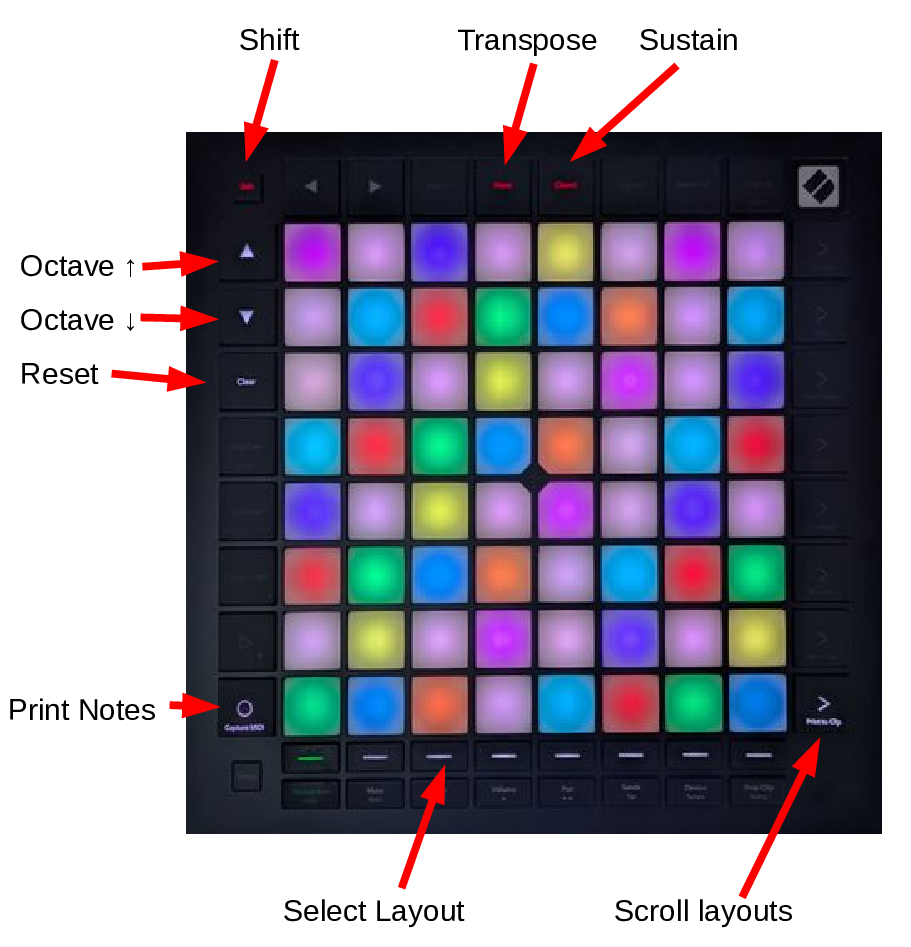
The web UI should look something like this:
Shift |
Transpose |
Sustain |
|||||||
▲ |
e' ^1|3 |
f#' ^1|2 |
a%' ^2|3 |
b%' ^5|6 |
c'2 1 |
d'2 ^1|6 |
e'2 ^1|3 |
f#'2 ^1|2 |
|
▼ |
b ^11|12 |
c#' ^1|12 |
e%' ^1|4 |
f' ^5|12 |
g' ^7|12 |
a' ^3|4 |
b' ^11|12 |
c#'2 ^1|12 |
|
Reset |
f# ^1|2 |
a% ^2|3 |
b% ^5|6 |
c' 1 |
d' ^1|6 |
e' ^1|3 |
f#' ^1|2 |
a%' ^2|3 |
|
c# ^1|12 |
e% ^1|4 |
f ^5|12 |
g ^7|12 |
a ^3|4 |
b ^11|12 |
c#' ^1|12 |
e%' ^1|4 |
||
a%, ^2|3 |
b%, ^5|6 |
c 1 |
d ^1|6 |
e ^1|3 |
f# ^1|2 |
a% ^2|3 |
b% ^5|6 |
||
e%, ^1|4 |
f, ^5|12 |
g, ^7|12 |
a, ^3|4 |
b, ^11|12 |
c# ^1|12 |
e% ^1|4 |
f ^5|12 |
||
b%,2 ^5|6 |
c, 1 |
d, ^1|6 |
e, ^1|3 |
f#, ^1|2 |
a%, ^2|3 |
b%, ^5|6 |
c 1 |
||
Show Notes |
f,2 ^5|12 |
g,2 ^7|12 |
a,2 ^3|4 |
b,2 ^11|12 |
c#, ^1|12 |
e%, ^1|4 |
f, ^5|12 |
g, ^7|12 |
Scroll layouts |
1 |
2 |
3 |
4 |
5 |
6 |
7 |
8 |
||
For the HexBoard, the initial web view looks like this:
The command keys are not illustrated in the web view for the HexBoard, but the textual information on the display tells you the functions of the command keys from top to bottom. To select a layout, press the second-to-top command key (the command keys are the seven buttons below the knob). You will see rows of white buttons at the top. Press the upper-left button to select the first layout. After you have done this, you should see something that looks like this photo, also annotated with key functions.
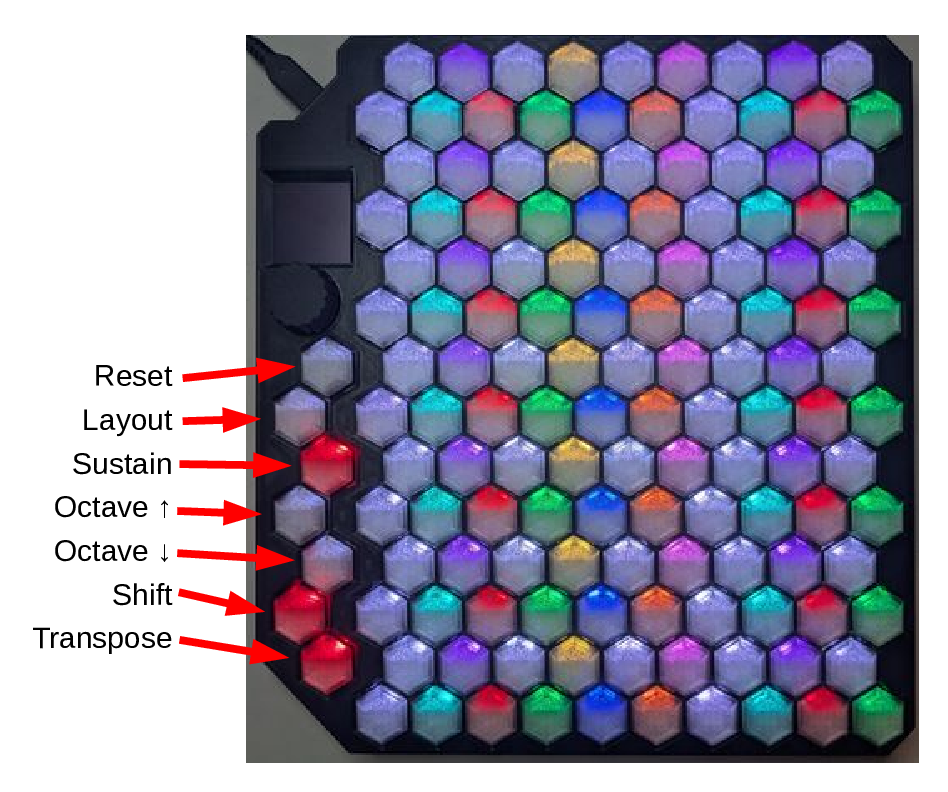
The web UI should resemble this:
^1|2
^2|3
^5|6
1
^1|6
^1|3
^1|2
^2|3
^5|6
^11|12
^1|12
^1|4
^5|12
^7|12
^3|4
^11|12
^1|12
^1|4
^5|12
^1|2
^2|3
^5|6
1
^1|6
^1|3
^1|2
^2|3
^5|6
^11|12
^1|12
^1|4
^5|12
^7|12
^3|4
^11|12
^1|12
^1|4
^5|12
^1|2
^2|3
^5|6
1
^1|6
^1|3
^1|2
^2|3
^5|6
^11|12
^1|12
^1|4
^5|12
^7|12
^3|4
^11|12
^1|12
^1|4
^5|12
^1|2
^2|3
^5|6
1
^1|6
^1|3
^1|2
^2|3
^5|6
^11|12
^1|12
^1|4
^5|12
^7|12
^3|4
^11|12
^1|12
^1|4
^5|12
^1|2
^2|3
^5|6
1
^1|6
^1|3
^1|2
^2|3
^5|6
^11|12
^1|12
^1|4
^5|12
^7|12
^3|4
^11|12
^1|12
^1|4
^5|12
^1|2
^2|3
^5|6
1
^1|6
^1|3
^1|2
^2|3
^5|6
^11|12
^1|12
^1|4
^5|12
^7|12
^3|4
^11|12
^1|12
^1|4
^5|12
^1|2
^2|3
^5|6
1
^1|6
^1|3
^1|2
^2|3
^5|6
^11|12
^1|12
^1|4
^5|12
^7|12
^3|4
^11|12
^1|12
^1|4
^5|12
If all is well, you should be able to press keys and hear sounds. If you can't hear sounds, it's probably a system-level audio configuration. Try getting Csound to work from its command-line tool. Once that works, syntoniq-kbd should work as well, or you can use the MIDI option.
When you're done, you can hit the reset button. This is the Clear button on the Launchpad and the topmost command key on the HexBoard. That will bring you back to the logo screen. If you had specified a keyboard configuration score file on the command-line, the reset operation also reloads that file, allowing you to iterate on layouts and scales without having to continually restart the application.
Subsequent sections will explain how to interpret what you see on the web display and how to use the keyboard's features.